 Instant Media
 en
en Русский
Getting started
Add the bot to a group and see the first delivery.
1. Open the bot
Open @InstantMediaBot and press Start. In a private chat the bot only points you to the mini app — it does not process links sent to it directly.
2. Add it to a group
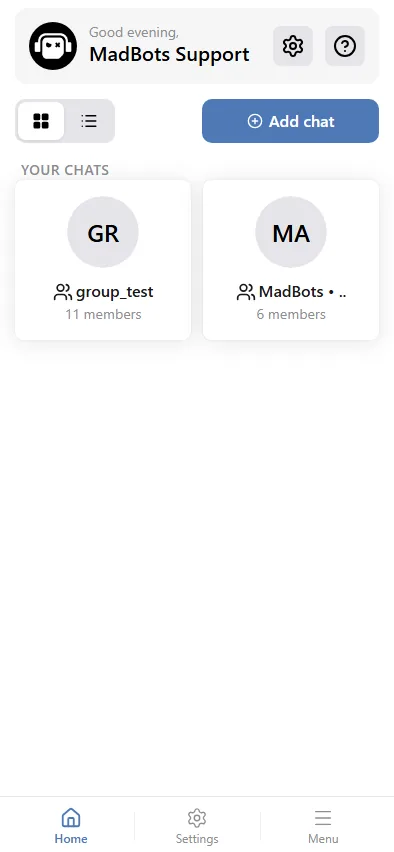
Use Add to group (or Manage chats once the bot is in a group) to open the mini app, pick or create the chat, and add the bot as an administrator — the permission it needs (posting messages) is already selected. Full steps: Adding the bot to a group.
3. Post a link
Post a message containing a link to any supported service in the group. The bot reacts with ⏳, then replies with the media:
If the group is still on the free plan and nobody has ever downloaded that exact link through our bots before, nothing arrives — see Cache vs. fresh download.
4. Adjust the settings
Open the mini app, select the chat, and walk through Settings: admins-only mode, hidden captions or progress messages, audio-only exports, resolution and file-size caps, and the chat's interface language.
Something not working?
- Check Admins-only mode — if it is on, only links from group administrators get a reply.
- Statistics and logs in the mini app show the status of every recent link, including why one was skipped.
- The FAQ covers the common cases; the support group @madbots_talk covers the rest.